super-diamond配置管理中心+Docker | 伈情的博客
super-diamond
- 配置管理系统提供系统参数配置管理,例如数据库的配置信息等,配置参数修改以后可以实时推送到客户端(基于netty4),
方便系统动态修改运行参数。 - 可以建多个项目,每个项目分为三种profile(development、test、production), 能够控制profile 级别的权限。
- 所有参数均由development profile配置,test和production profile继承development profile配置,也可以覆盖其配置。
test和production profile只提供修改功能。 - client 备份配置信息到本地文件系统,如果server不可用,可以使用本地备份。client 能够定时重连server,保证client高可用。
- client 提供ConfigurationListener,当某个属性发生变化(add、update、clear), ConfigurationListener能够接收到ConfigurationEvent。
- server 备份配置文件系统系统,如果数据库不用,能够保证对客户端提供数据(待完善)。
- 支持php项目从superdiamond中获取配置参数。
系统功能截图: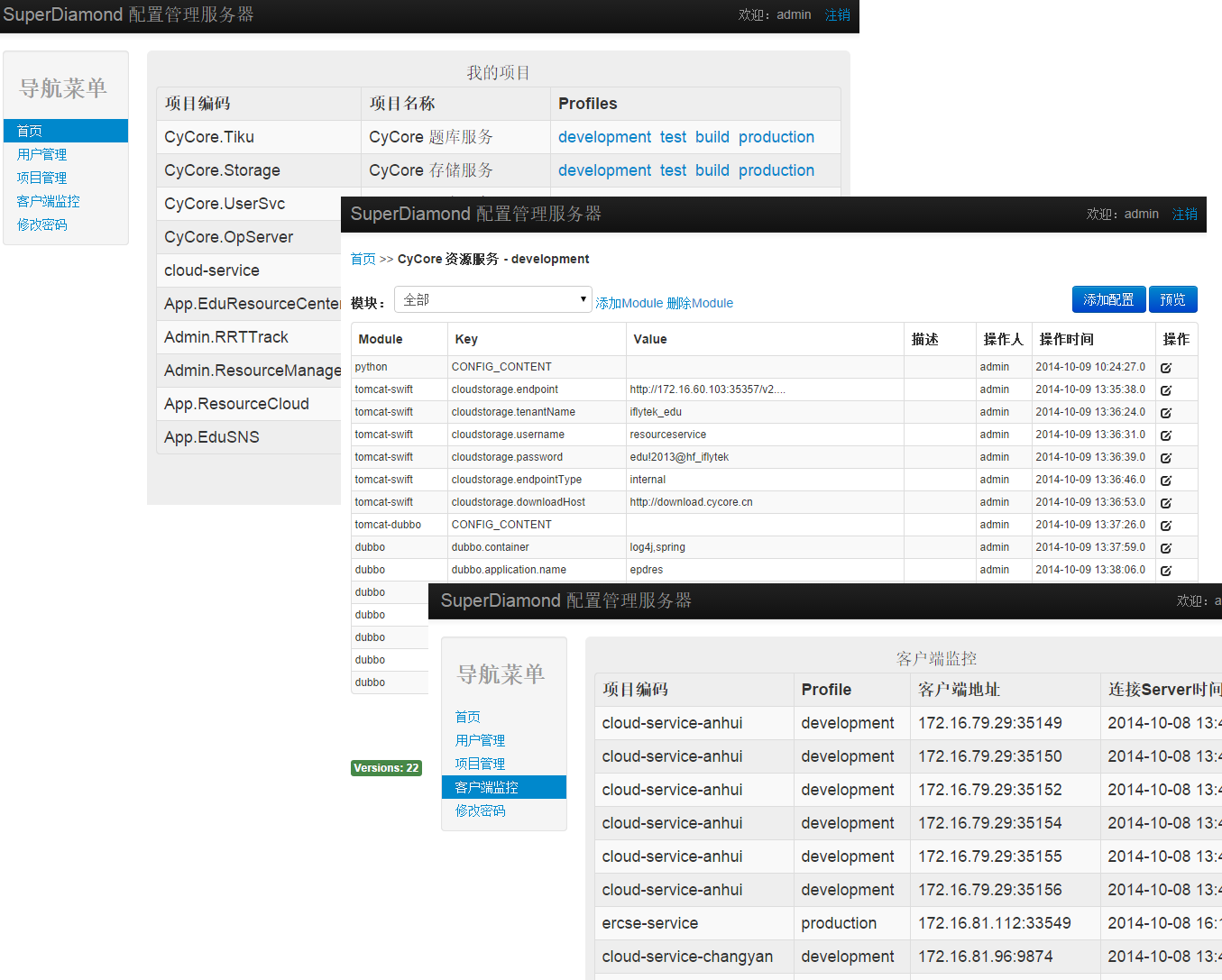
super-diamond-server 安装
- 下载super-diamond代码: git clone https://github.com/melin/super-diamond.git
- 进入super-diamond目录,构建super-diamond父工程: mvn install
- super-diamond-server中嵌入jetty运行,构建部署包:mvn install assembly:single -Pproduction,生成super-diamond-server-${version}-bin.tar.gz文件,
解压运行bin/server.sh start命令。 - 在conf\META-INF\scripts目录中,提供mysql和oracle建表脚本,理论也支持其它数据库,在conf\META-INF\res\config-production.properties文件中修改数据库配置。
- 在conf_user表中添加用户admin,密码000000的加密值为:670b14728ad9902aecba32e22fa4f6bd, mysql脚本:
insert into conf_user(id,USER_code,USER_NAME,PASSWORD,CREATE_TIME) values(1,’admin’,’admin’,’670b14728ad9902aecba32e22fa4f6bd’,current_timestamp() );
commit; - 访问super-diamond-server,jetty默认端口为8090,可以在:conf/META-INF/res/jetty.properties中修改。
http://localhost:8090/superdiamond
spring 注入使用方式
1 2 3 4 5 6 7 8 9 10 11 | <bean class="org.springframework.context.support.PropertySourcesPlaceholderConfigurer"> <property name="properties" ref="propertiesConfiguration" /> </bean> <bean id="propertiesConfiguration" class="com.github.diamond.client.PropertiesConfigurationFactoryBean"> <constructor-arg index="0" value="192.168.10.126" /> <constructor-arg index="1" value="8283" /> <constructor-arg index="2" value="517events" /> <constructor-arg index="3" value="production" /> <constructor-arg index="4" value="" /> </bean> |
手动连接方式及回调监听器:
1 2 3 4 5 6 7 8 9 10 11 12 13 14 15 16 17 18 19 20 21 22 | ApplicationContext applicationContext = new ClassPathXmlApplicationContext("applicationContext.xml"); JedisPool jedisPool = (JedisPool) applicationContext.getBean("jedisPool"); Jedis jedis = jedisPool.getResource(); jedis.set("haibin", "haha"); System.out.println(jedis.get("haibin")); jedis.close(); config = PropertiesConfigurationFactoryBean.getPropertiesConfiguration(); config.addConfigurationListener(new ConfigurationListener() { public void configurationChanged(ConfigurationEvent event) { // TODO Auto-generated method stub System.out.println("监听器监听到数据发生变化"); maxTotal = config.getString("maxTotal"); targetMethod = config.getString("lotteryInit.targetMethod"); System.out.println(maxTotal); System.out.println(targetMethod); } }); maxTotal = config.getString("maxTotal"); targetMethod = config.getString("lotteryInit.targetMethod"); System.out.println(maxTotal); System.out.println(targetMethod); |
Rest 接口获取配置:
通过http获取配置信息,http url格式为:
properties格式
http://host:port/superdiamond/preview/${项目编码}/${profile}
http://host:port/superdiamond/preview/${项目编码}/${module}[,${module}]/${profile} //支持设置多个module值,用逗号分割
http://host:port/superdiamond/preview/${项目编码}/${module}/${key}/${profile}php config格式
http://host:port/superdiamond/preview/${项目编码}/${profile}?format=php
http://host:port/superdiamond/preview/${项目编码}/${module}[,${module}]/${profile}? format=php //支持设置多个module值,用逗号分割json config格式
http://host:port/superdiamond/preview/${项目编码}/${profile}?format=json
http://host:port/superdiamond/preview/${项目编码}/${module}[,${module}]/${profile}? //支持设置多个module值,用逗号分割format=json
mysql+docker & super-diamond+Docker
mysql+docker
使用现有docker官方仓库的mysql镜像:centurylink/mysql
注意编码问题
需要在docker容器中修改:/etc/mysql/my.cnf
添加一下编码设置:
1 2 3 4 5 6 7 | character_set_server=utf8 collation=utf8_general_ci [mysqldump] quick quote-names max_allowed_packet = 16M |
启动mysql-docker
1 | docker run -d -p 3306:3306 --name mysql -v /data/mysql:/var/lib/mysql -e MYSQL_ROOT_PASSWORD=a132123. centurylink/mysql:v2 |
super-diamond+Docker
基于docker官方centos7镜像:centos:centos7 创建super-diamond镜像
编写Dockerfile
1 2 3 4 5 6 7 8 9 10 11 12 13 14 15 16 17 18 19 20 21 22 23 24 25 26 27 28 29 30 31 32 33 34 | FROM centos:centos7 MAINTAINER Leadeon yunhaibin <nickid@qq.com> # UPDATE RUN yum -y update # INSTALL packages RUN yum -y install wget RUN yum -y install tar # INSTALL JAVA RUN yum -y install java-1.7.0-openjdk-devel.x86_64 # SET JAVA_HOME ENV JAVA_HOME /usr/lib/jvm/java-1.7.0-openjdk-1.7.0.85-2.6.1.2.el7_1.x86_64 RUN echo "export JAVA_HOME=$JAVA_HOME" >> /etc/profile RUN echo "export PATH=$JAVA_HOME/bin:$PATH" >> /etc/profile RUN echo "export CLASSPATH=.:$JAVA_HOME/lib/dt.jar:$JAVA_HOME/lib/tools.jar" >> /etc/profile RUN source /etc/profile # COPY super-diamond-server-1.1.0-SNAPSHOT-bin.tar.gz /opt/super-diamond-server-1.1.0-SNAPSHOT-bin.tar.gz ADD super-diamond-server-1.1.0-SNAPSHOT-bin.tar.gz /opt # UNPACK RUN rm -rf /opt/super-diamond-server-1.1.0-SNAPSHOT-bin.tar.gz RUN chmod +x /opt/super-diamond-server-1.1.0-SNAPSHOT/bin/*.sh # SET LINUX TIMEZONE UTC+8 RUN mv -f /etc/localtime /etc/localtime.bak && cp /usr/share/zoneinfo/Asia/Shanghai /etc/localtime # SET PORT and start TOMCAT EXPOSE 8090 EXPOSE 8283 CMD /opt/super-diamond-server-1.1.0-SNAPSHOT/bin/server.sh start |
构建super-diamond镜像:docker build (Build an image from a Dockerfile)
启动super-diamond-docker
启动前必须先启动mysql-docker,并使用docker容器链接方式启动super-diamond-docker
1 | docker run -d -p 8283:8283 -p 8090:8090 --name diamond --link=mysql:db yunhaibin/diamond:v2 |
End…
